How to translate text from anywhere on your Mac
2 min read
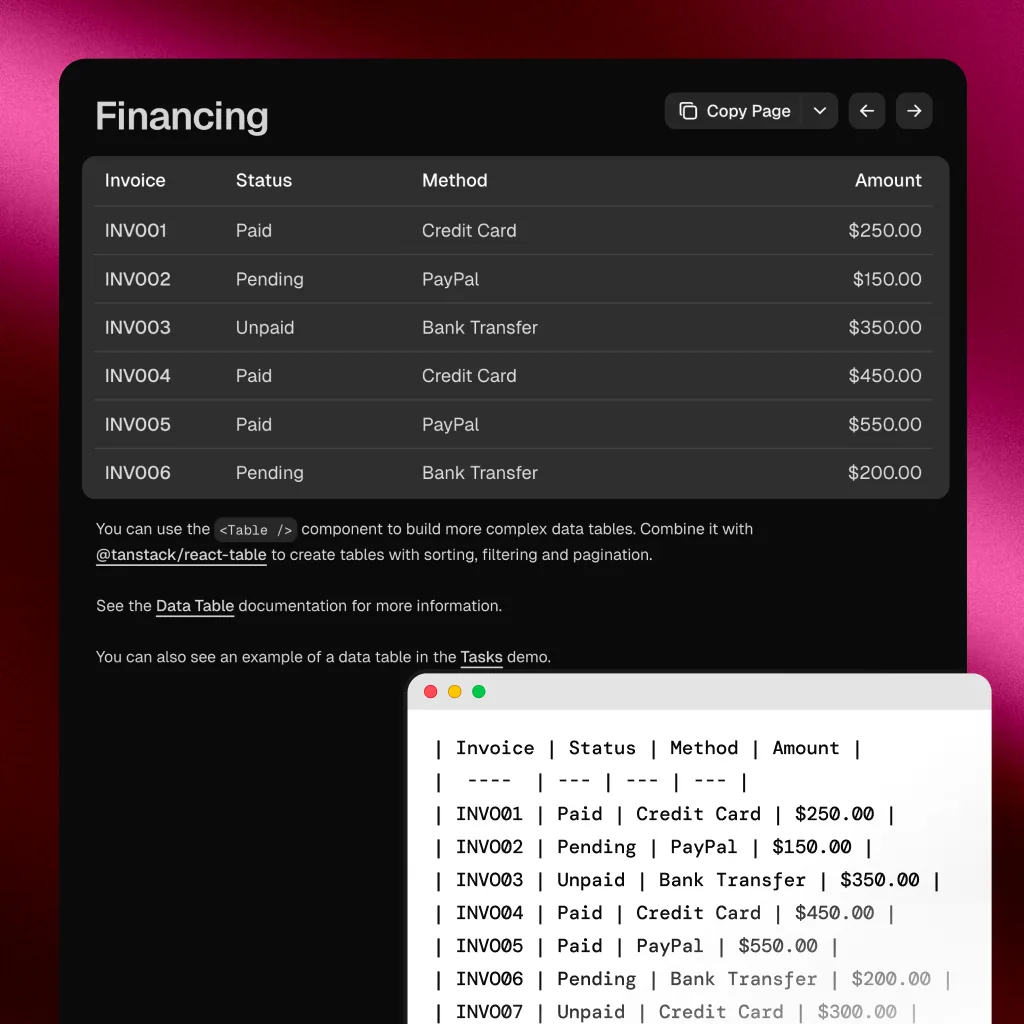
Translation tools are powerful, but they all share the same assumption: that you can copy the text first.
Google Translate, DeepL, Apple Translate. They all need text input. And that works fine when the text is in a document or a webpage.
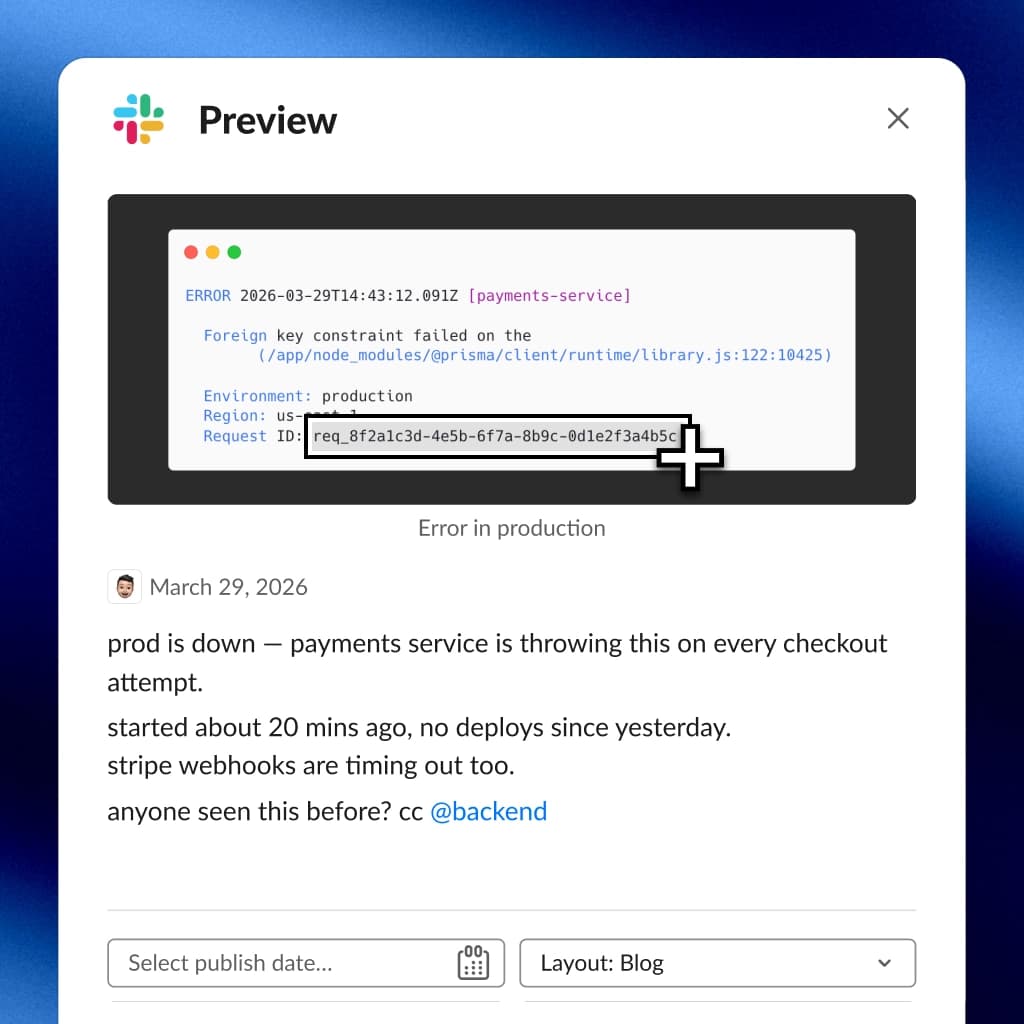
But what about text inside an image? A video? A screenshot of a foreign-language menu? The translation workflow breaks at step one.
Where it breaks
The typical process: select, copy, open translator, paste, read. Steps 2 through 5 are fast. Step 1 is where everything stops.
If the text is not selectable, you are stuck retyping it. And if the text is in a script you cannot type, you are completely stuck.
This happens more often than you would expect:
- A photo of a sign, menu, or label in another language
- A screenshot from a foreign-language website
- Subtitles burned into a video frame
- A scanned document or PDF in another language
Translation as part of extraction
The fix is to combine extraction with translation in a single step.
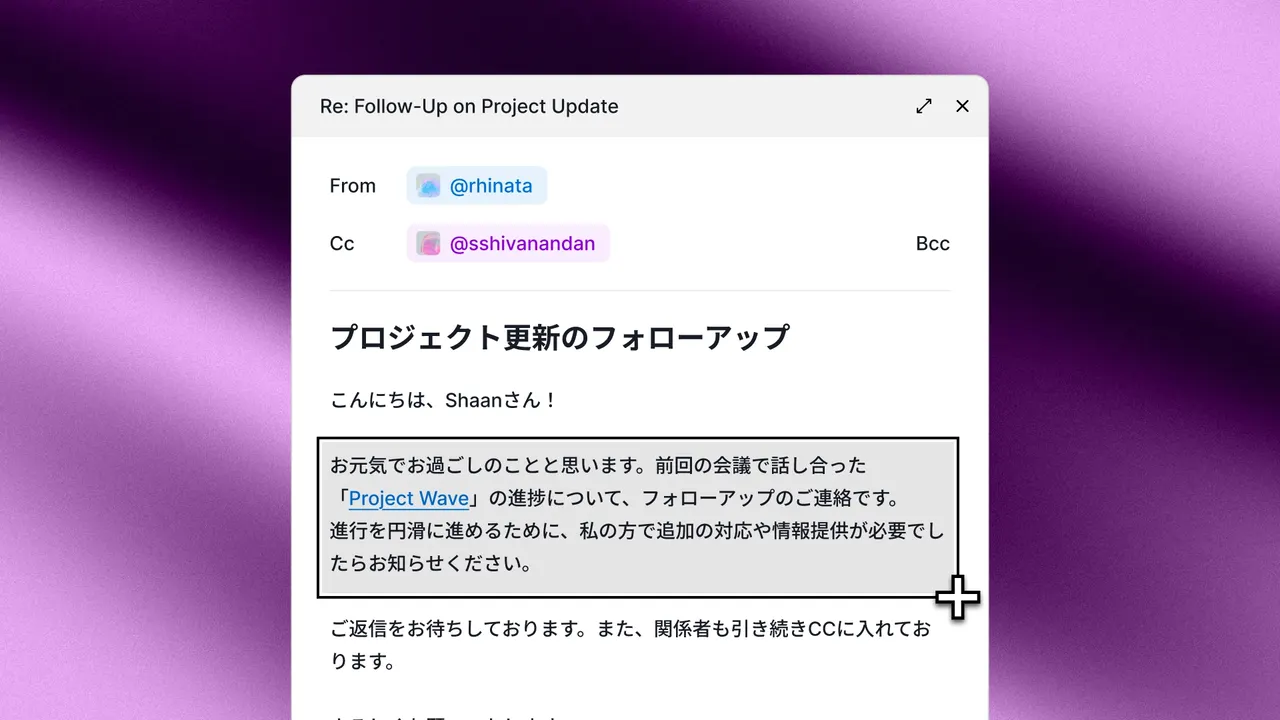
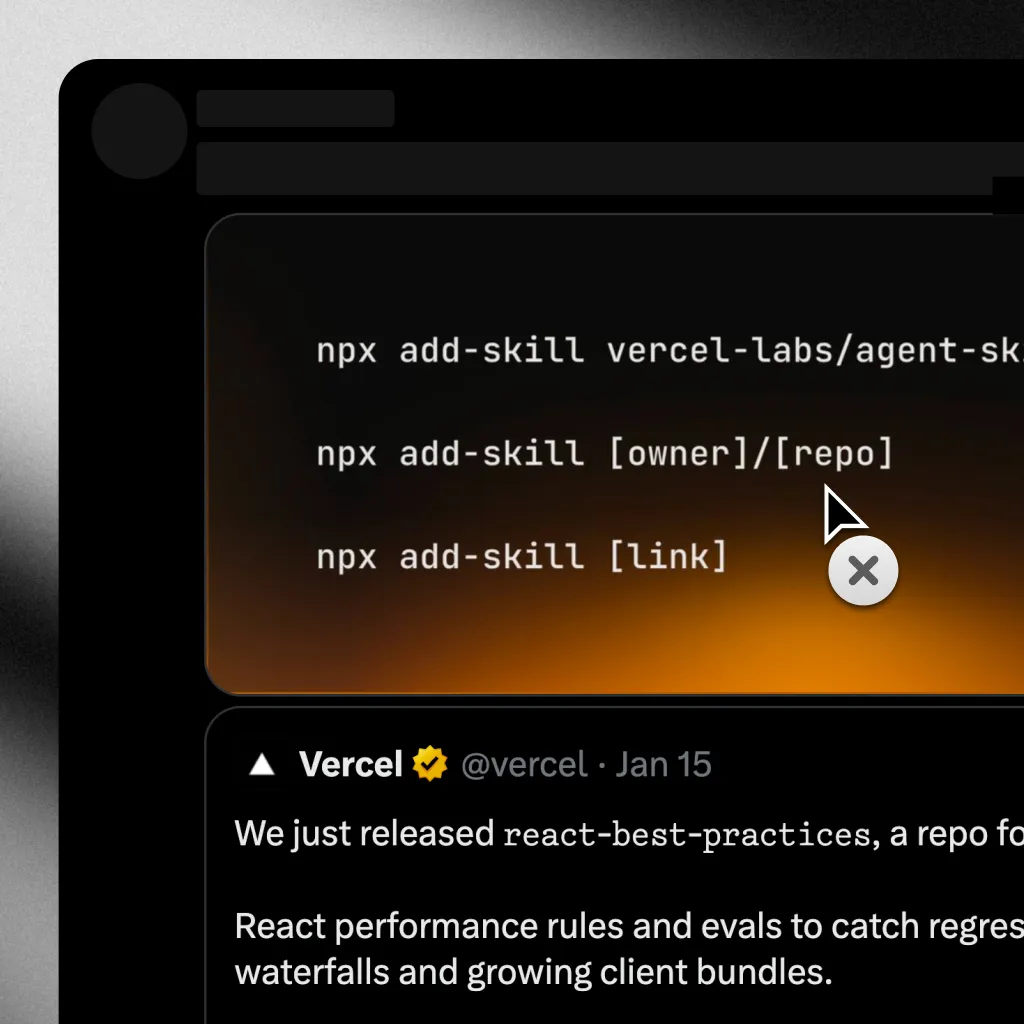
Selectable has a dedicated keyboard shortcut for translation:
- Drag over any text on screen
- The text is recognized via on-device OCR
- It is translated instantly using Apple's Translation framework
- The translated text is copied to your clipboard
No app switching. No pasting into a separate tool. No retyping foreign characters.
Both OCR and translation happen locally on your Mac. Apple's Translation framework supports 13 languages. Your text never leaves your device.
What this looks like in practice
- Reading a research paper with mixed-language citations
- Understanding a UI screenshot from a localized app
- Translating a handwritten note someone photographed
- Working with international teams who share content in their native language
The barrier between "I can see foreign text" and "I understand it" shrinks to a single shortcut.
The right expectation
If you can see text on your screen, you should be able to understand it. The language and the format should not matter.