How to read text aloud from images on Mac
2 min read
Text-to-speech on macOS works well when text is selectable. Highlight a paragraph, right-click, choose "Speech." Or use a screen reader that navigates structured content.
But when text is inside an image, all of that breaks. There is nothing to select. The text is invisible to every accessibility tool on your system.
Where text-to-speech fails
TTS tools need text input. They convert characters to audio. If the content is an image, there are no characters to convert.
This affects more situations than you might think:
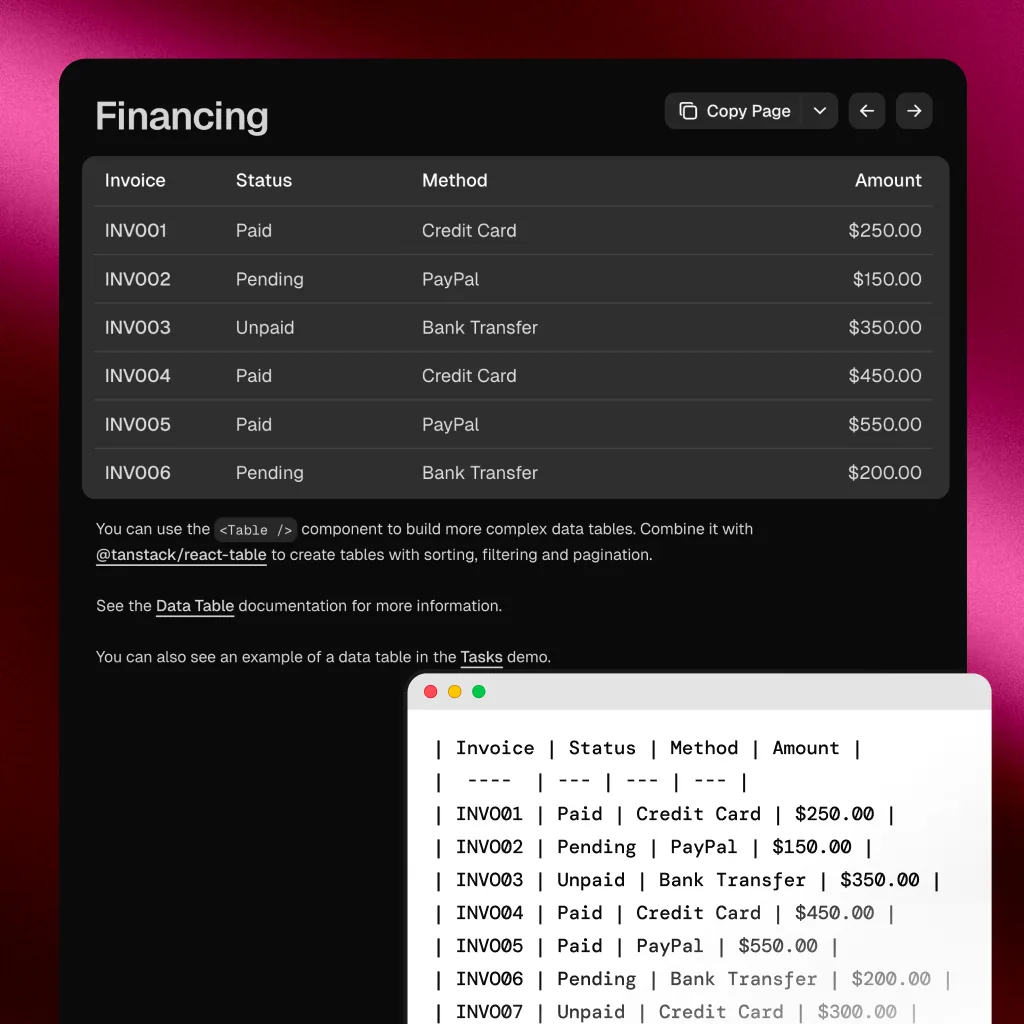
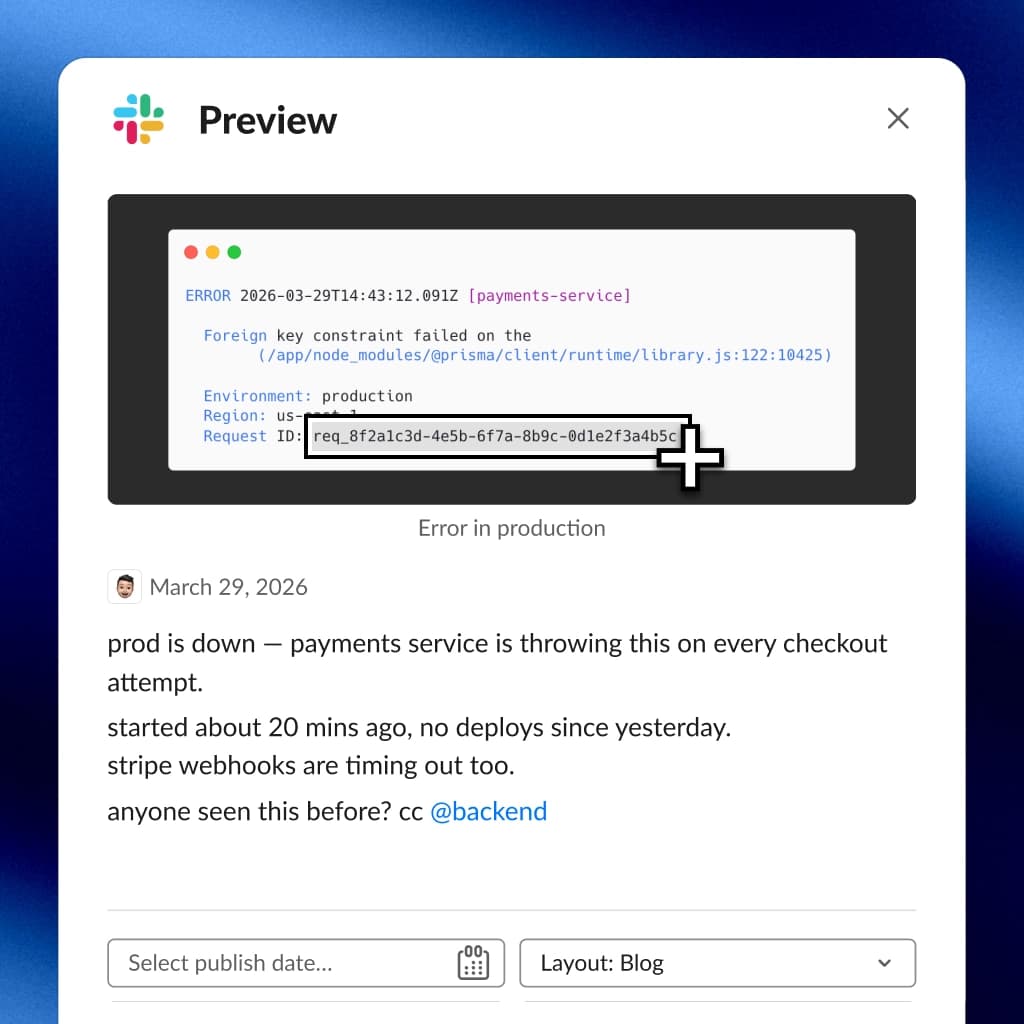
- Screenshots of articles or messages. Someone shares a screenshot of a long text. You want to listen to it while doing something else.
- Scanned documents. A scanned book page, a photographed whiteboard, a digitized form. All visual, no text layer.
- Infographics and diagrams. Text embedded in images alongside charts. Useful information locked in a visual format.
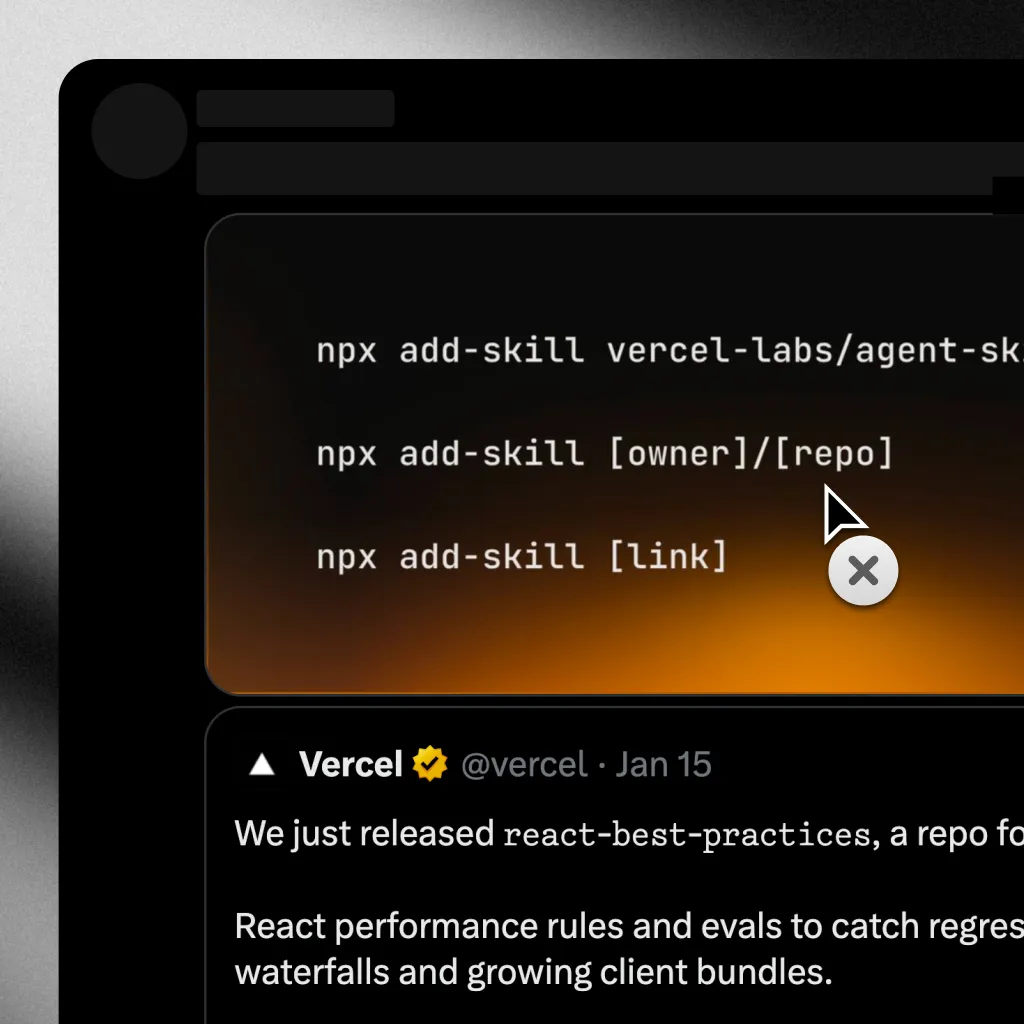
- Social media images. Text posts shared as images, quote graphics, informational cards.
- Learning materials. Textbook pages photographed by students, lecture slides saved as images.
Combining OCR with text-to-speech
Selectable handles this in one action: extract the text, then read it aloud.
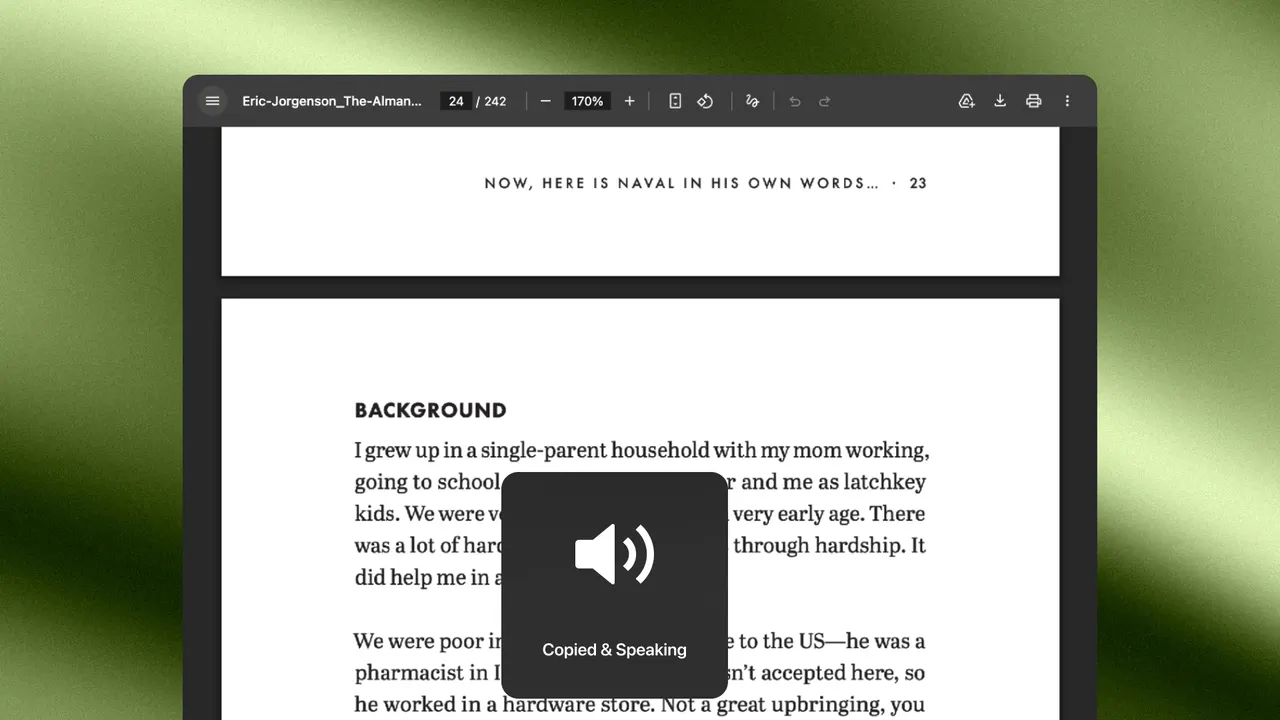
- Press the TTS capture shortcut
- Drag over text in any image on screen
- The text is recognized via on-device OCR
- It is spoken aloud using macOS text-to-speech
About a second from shortcut to speech.
180+ voices across 48 languages
Selectable uses Apple's AVSpeechSynthesizer, which provides the full library of macOS voices:
- Natural-sounding voices across major languages
- Multiple options per language (different accents, genders, speaking styles)
- Voices that work entirely offline once downloaded
The same voice system that powers Siri and macOS accessibility features.
Useful beyond accessibility
- Multitasking. Listen to a long screenshot while your hands are busy.
- Language learning. Hear the pronunciation of captured foreign-language text.
- Proofreading. Hearing text read aloud catches errors your eyes skip over.
- Reducing eye strain. After hours of reading, switch to listening.
The right default
If you can see text on your screen, you should be able to hear it. The format should not matter.